
How to Set Up SOCKS5 Proxy in Firefox: Ultimate Guide
Table of Contents
In this step-by-step tutorial, we’ll show you two methods to quickly set up a SOCKS5 proxy in Mozilla Firefox.
First, we’ll show you how to use a third-party extension called FoxyProxy. Then, using the native Firefox settings.
💡 First thing first, to set up your proxy, you’ll need a few requirements:An anyIP.io proxy account. You can enjoy our fully refundable plan if you don't have one.
All the proxies needed information such as :
username/password;
proxy server addresses (URL or IP + port) ;
Set up SOCKS5 Proxy on Firefox with FoxyProxy
This guide will show you how to configure a proxy on Firefox using the FoxyProxy extension.
This method is ideal for improving your workflow and addressing some common downsides of native proxy configuration, such as:
Compatibility issues;
DNS leaks;
Difficulty switching between multiple profiles.
Head up to the FoxyProxy download page to download the extension, then follow our guide :
Step 1: Download the extension and add the extension to your browser :
| |
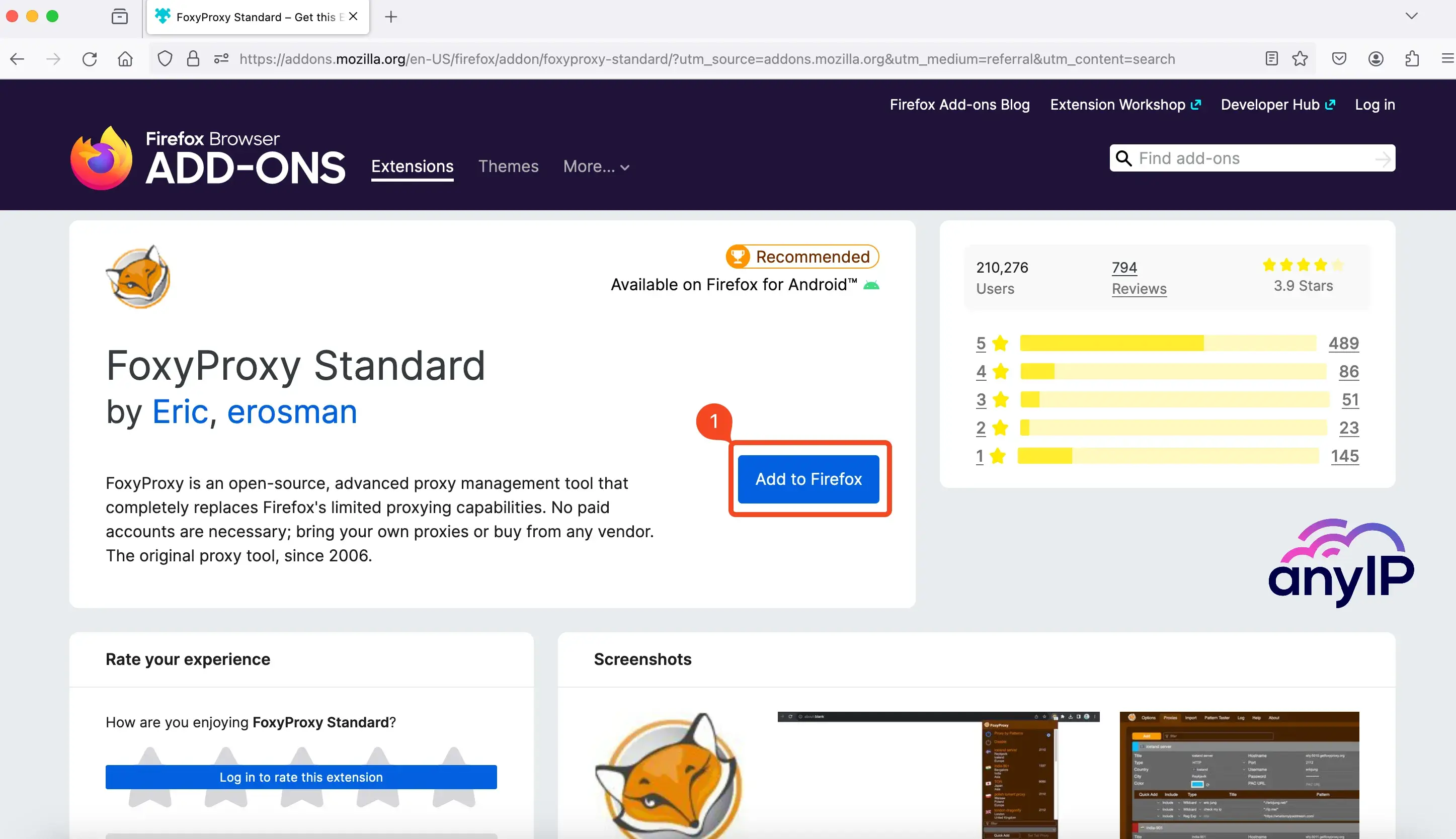
Click on “Add to Firefox"
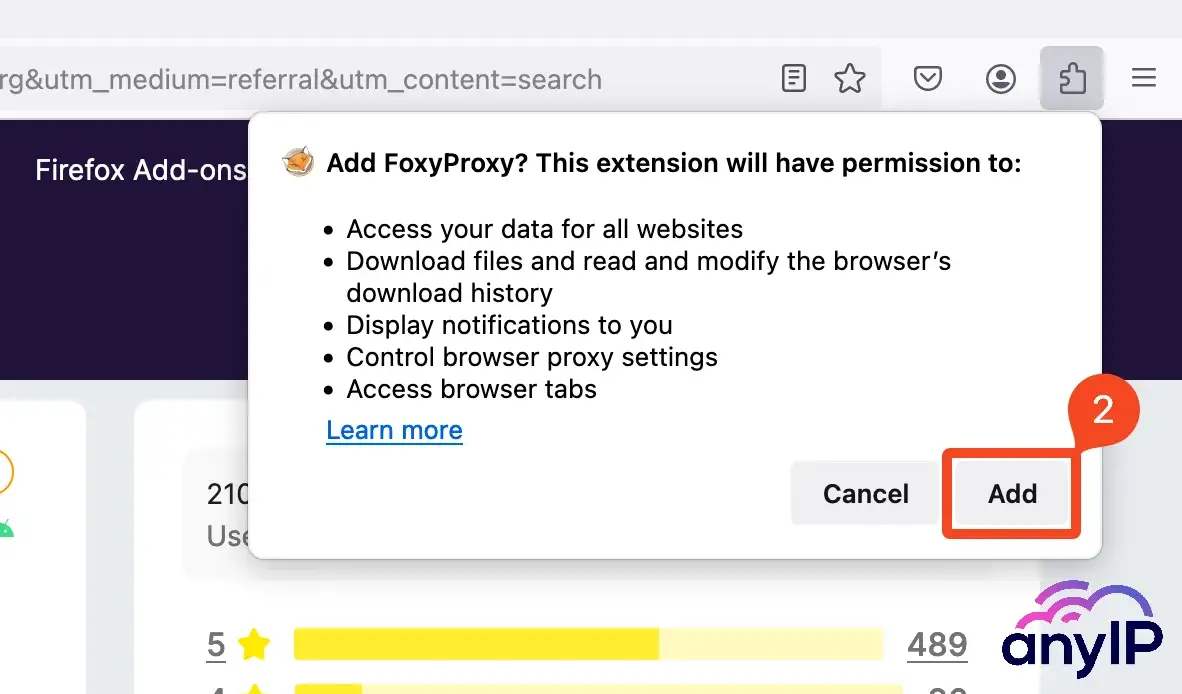
Review all the permissions granted to FoxyProxy and click on “Add” to confirm
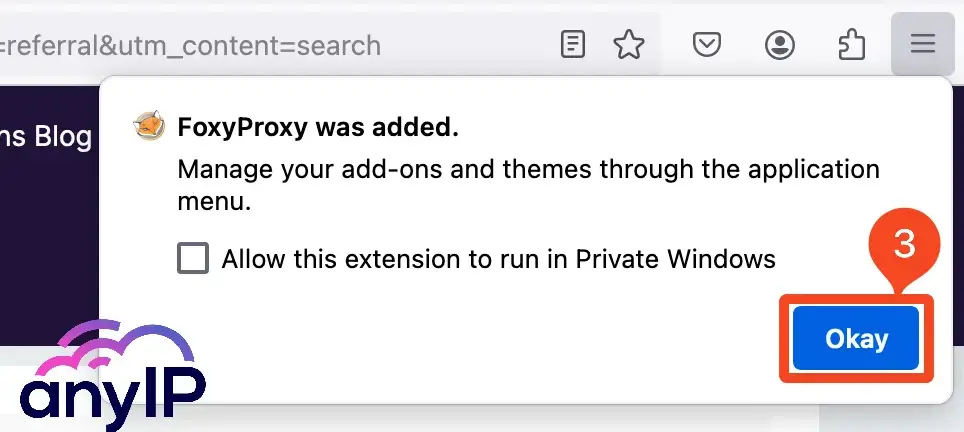
Don’t forget to check the box to allow the extension to run in private mode if you need it. Then click on “Okay” to finish the installation
Step 2: Open the extension and click on “Options” to open FoxyProxy’s dashboard
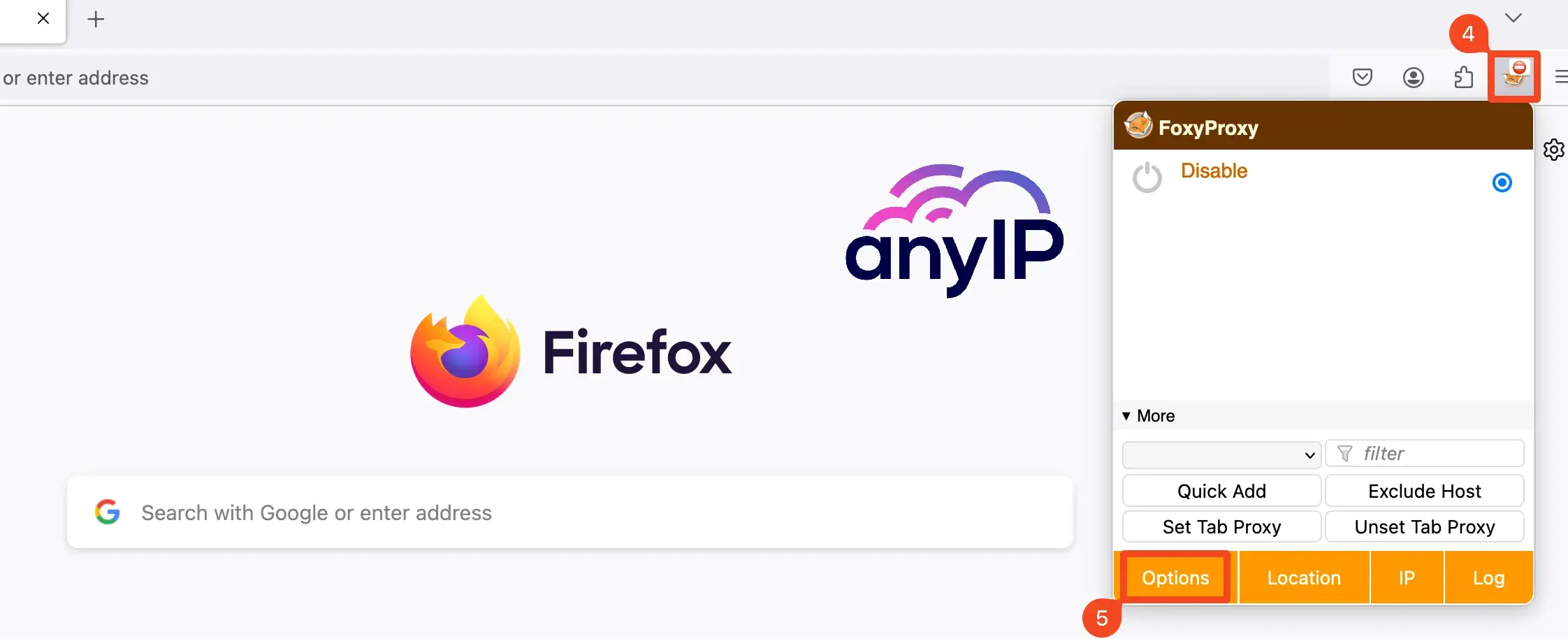
Click on the FoxyProxy icon to open the extension
Open the Options menu by clicking on “Options.”
Step 3: Head up to the “Proxies” tab to configure your proxy
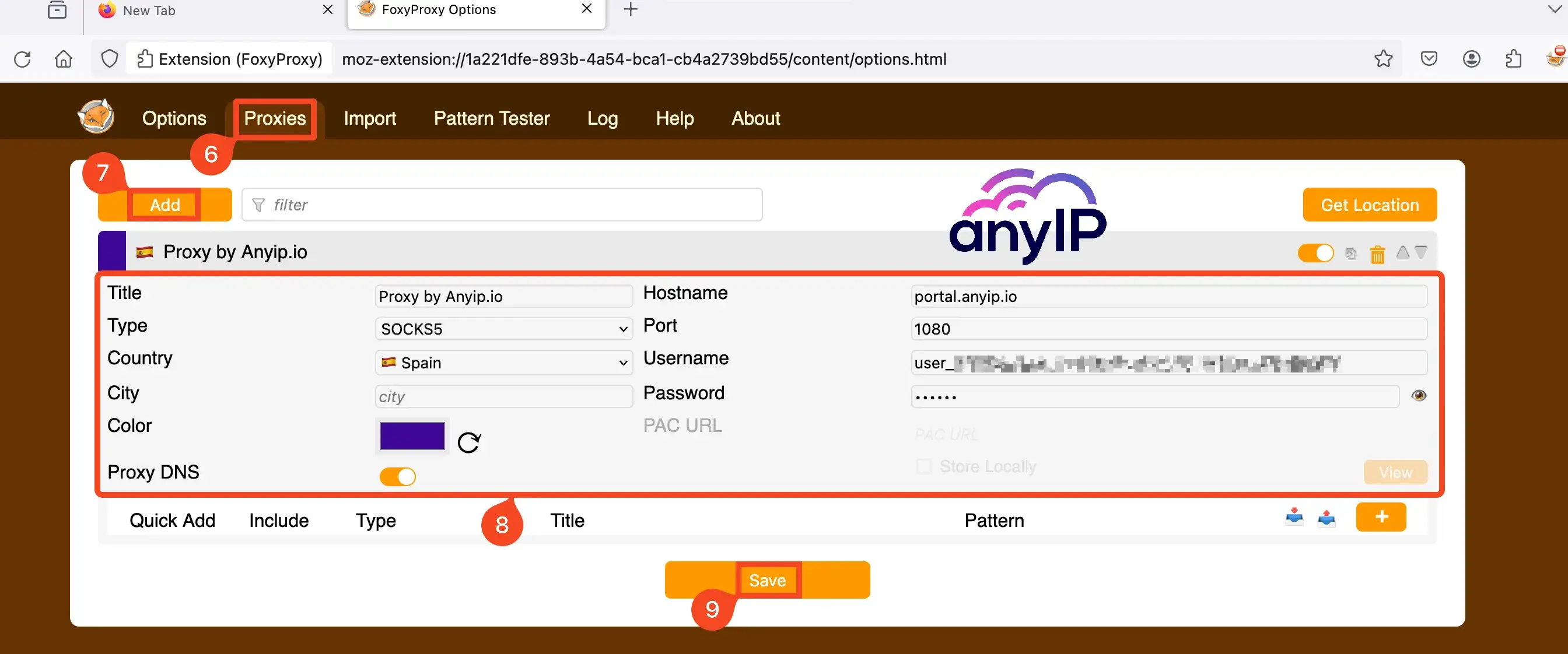
Navigate to “Proxies”
Click on “Add” to open the form
Fill out the form as follows
Title: Choose a clear title to identify this proxy quickly
Type: select “SOCKS5” in the dropdown menu
Country, City, and Color: For this guide, we use a proxy configured to "Spain." But those fields are purely for UI purposes. They won't impact the way the proxy works
Hostname: Enter the proxy hostname or IP. Here, we use our proxies, so we enter “portal.anyip.io”
Port: enter the proxy port, here “1080”
Username and password: Enter your credentials to connect to your proxy
Proxy DNS: ⚠︎ Make sure to enable this option to be fully anonymous. Otherwise, the website you’ll be visiting will know that you’re using a proxy.
After completing the form, click “Save” and close the FoxyProxy dashboard
Step 4: Connect to your proxy
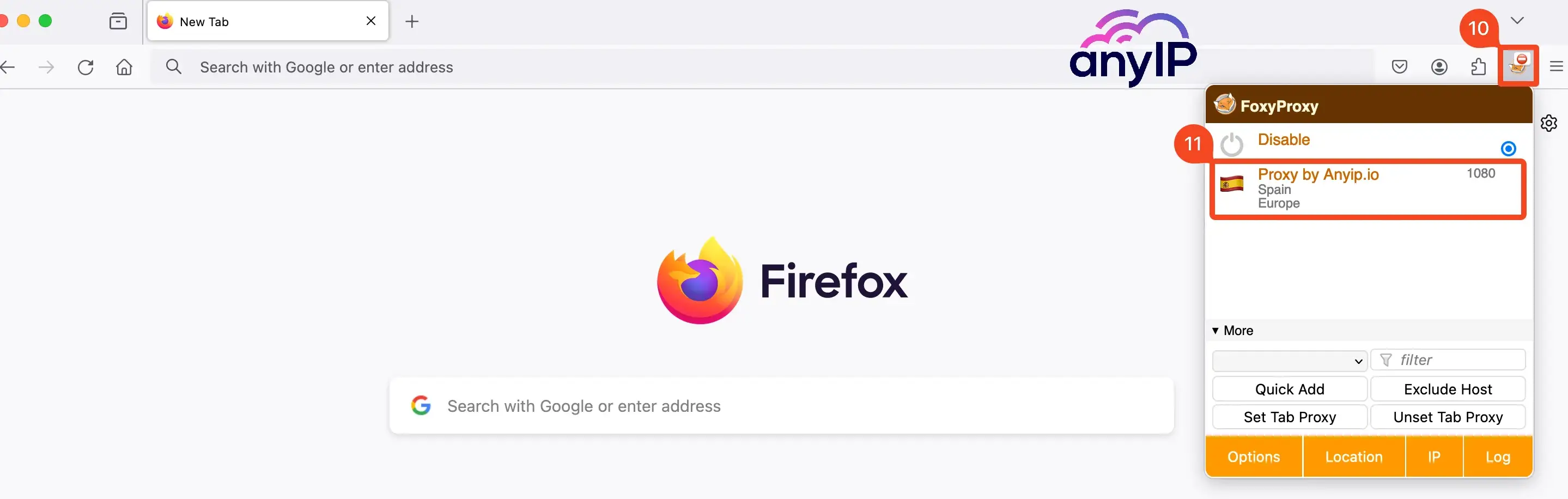
Open FoxyProxy by clicking on the extension’s icon
Select the proxy you want to connect to by clicking on it. Here, we select our proxy.
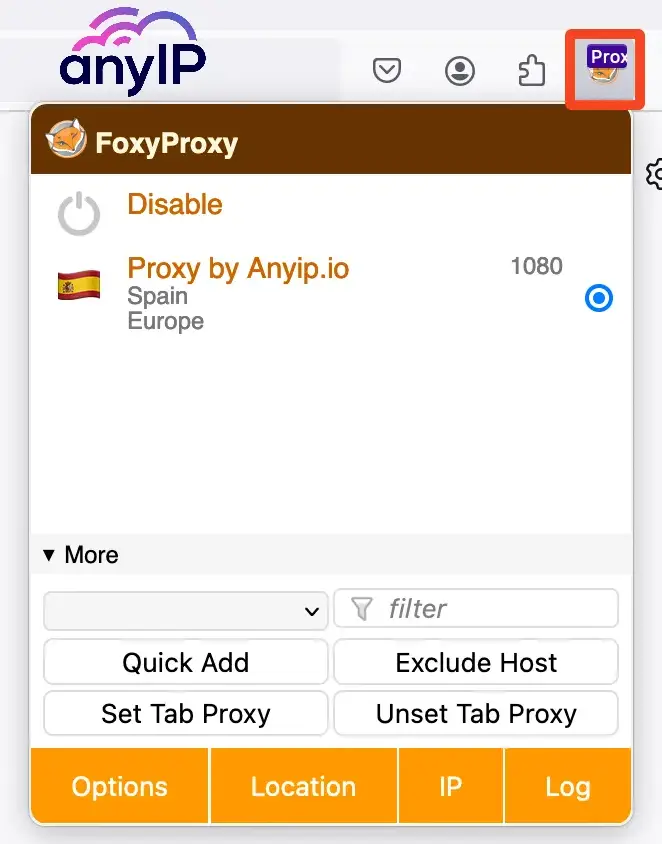
You are now all setup and can freely and anonymously browse the web.
Set up SOCKS5 Proxy natively on Firefox
You don't like installing extension to your browser? Say no more, we can still help you!
💡 Firefox is not fully compatible natively with proxies
To use a SOCKS5 Proxy natively on Firefox, we’ll need a proxy provider that offers an IP Whitelisting authentication method.
For example, anyIP.io. Indeed, Firefox is not compatible with a SOCKS5 Proxy. The Proxy requires username/password authentication.
With that being said, let's start now
Step 1: Go to Firefox’s settings
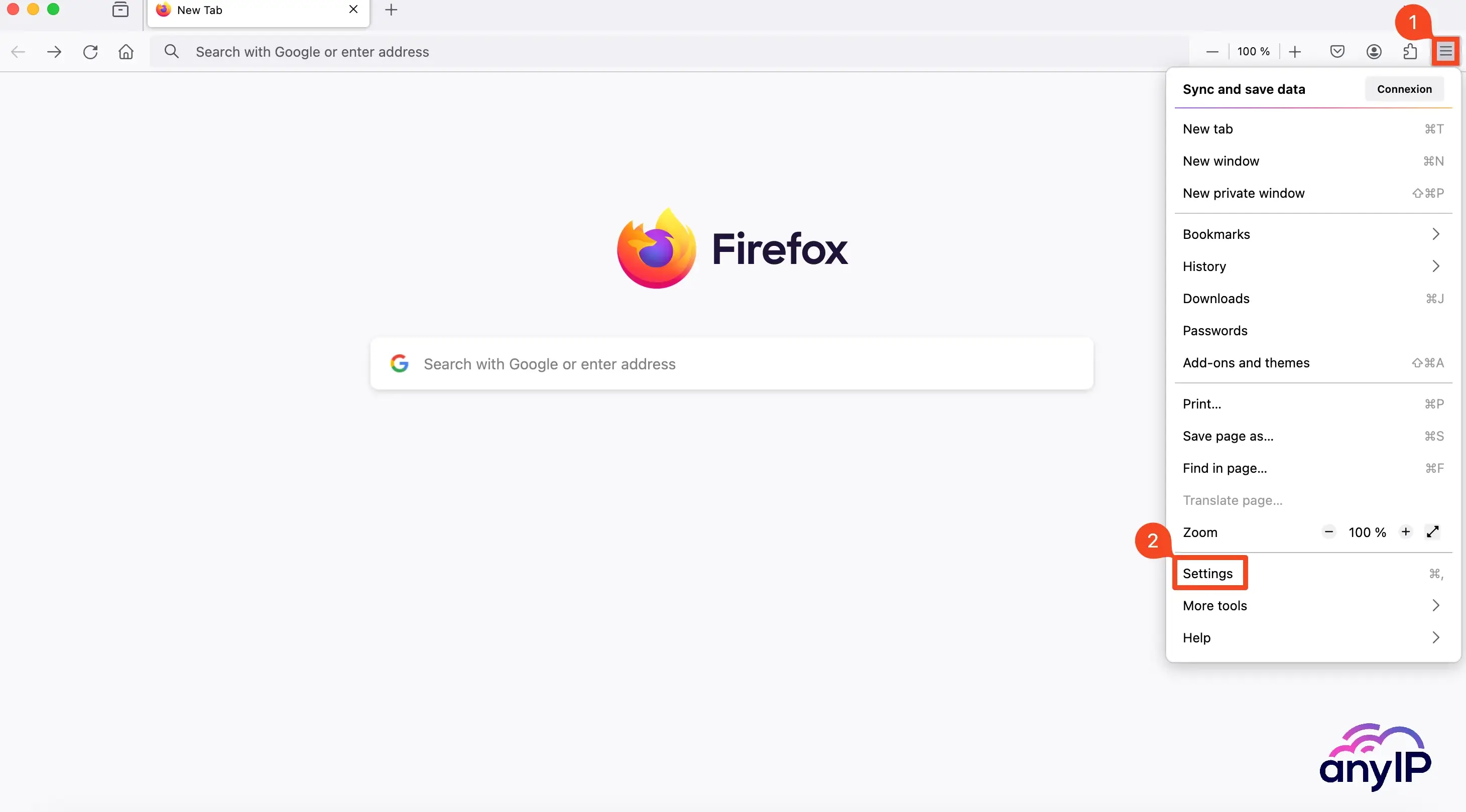
Click the Firefox configuration menu on the right to access the menu
Then open Firefox’s settings by clicking on “Settings.”
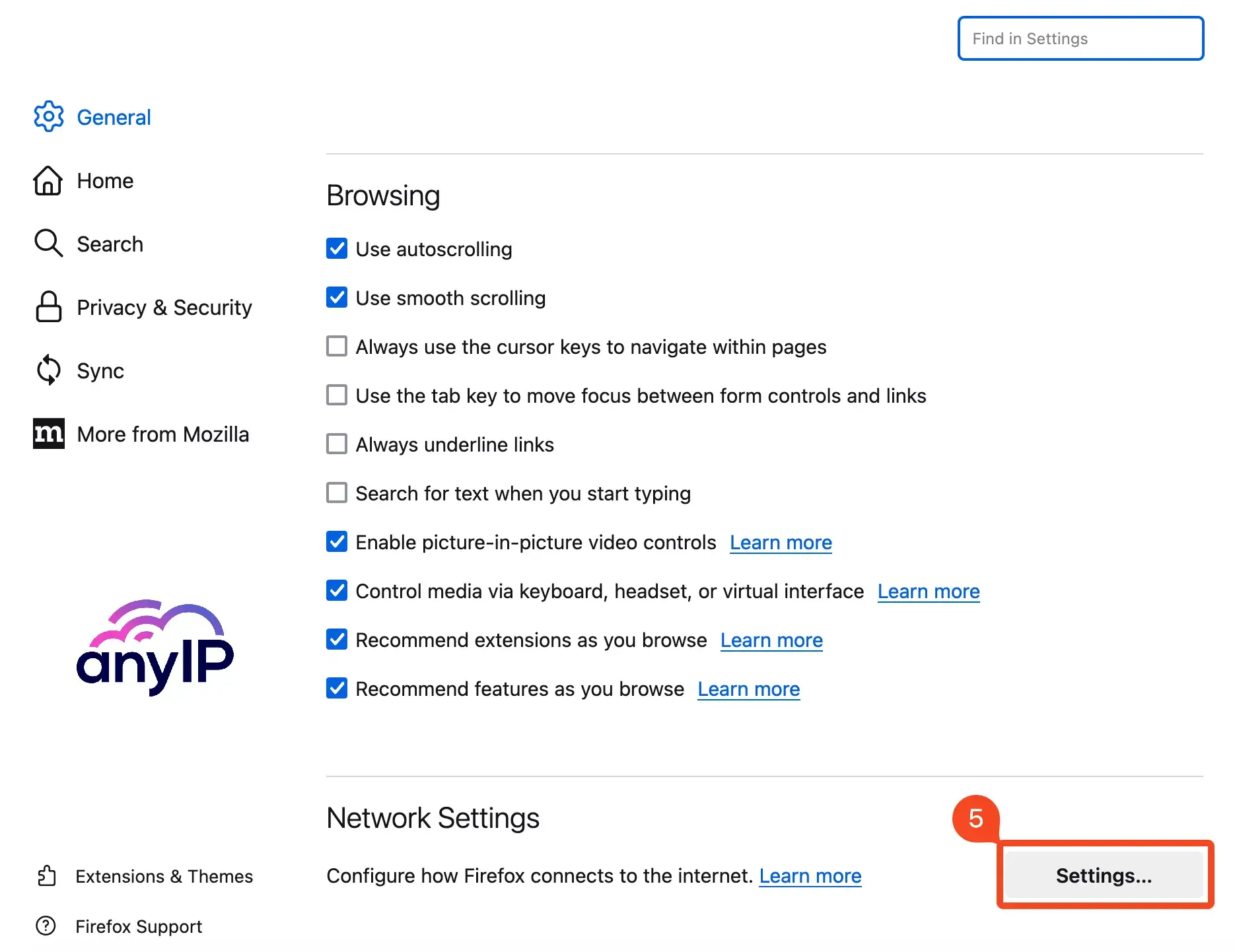
Step 2: Scroll down to the bottom to access the “Network Settings”
| |
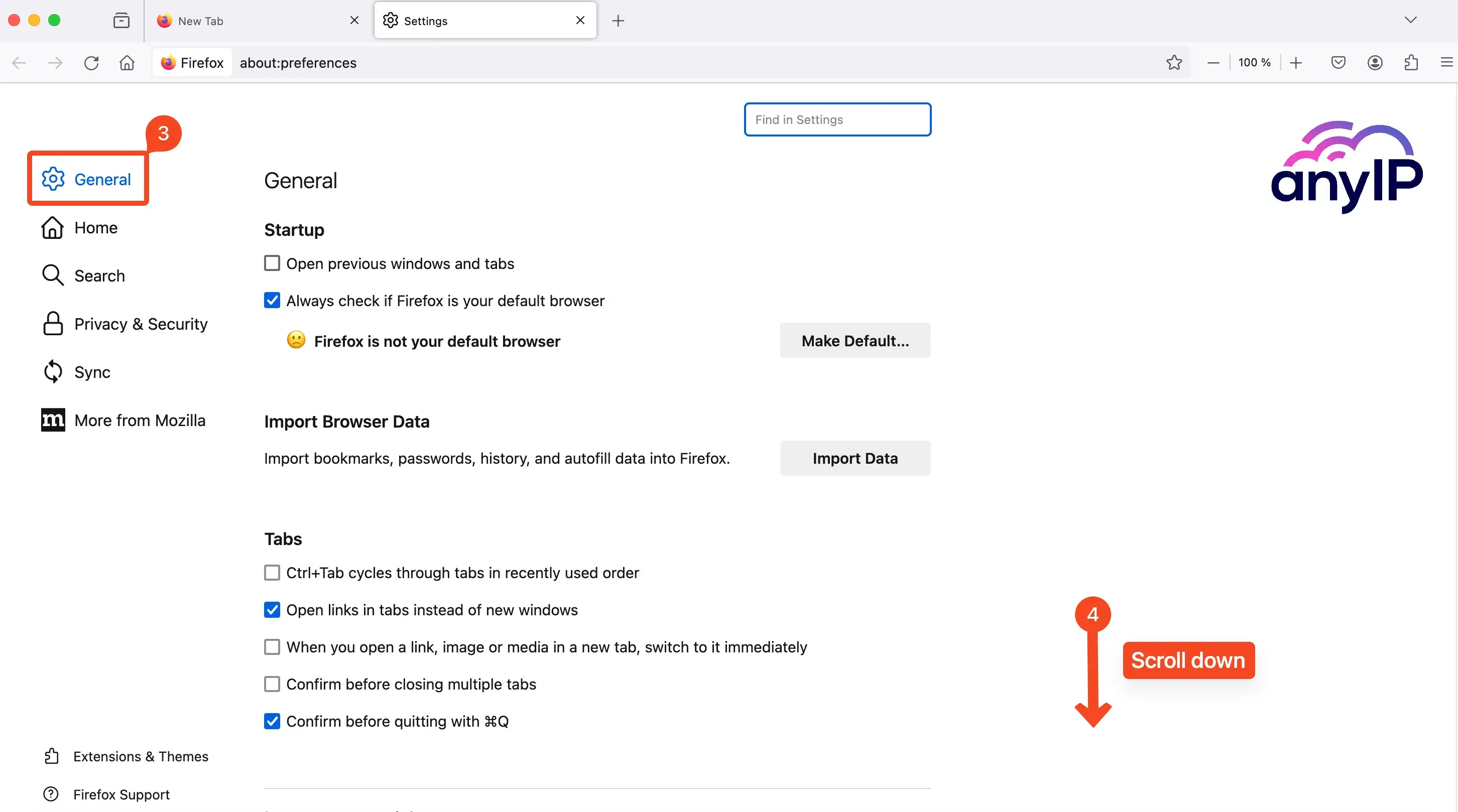
Make sure that you are on the “General” settings panel
Scroll down to the bottom of the general settings page
Click on the “Settings” button to open Firefox network’s settings
Step 3: Check the “Manual proxy configuration” box. Fill the SOCKS Host field with your provider information (URL, IP, and port).
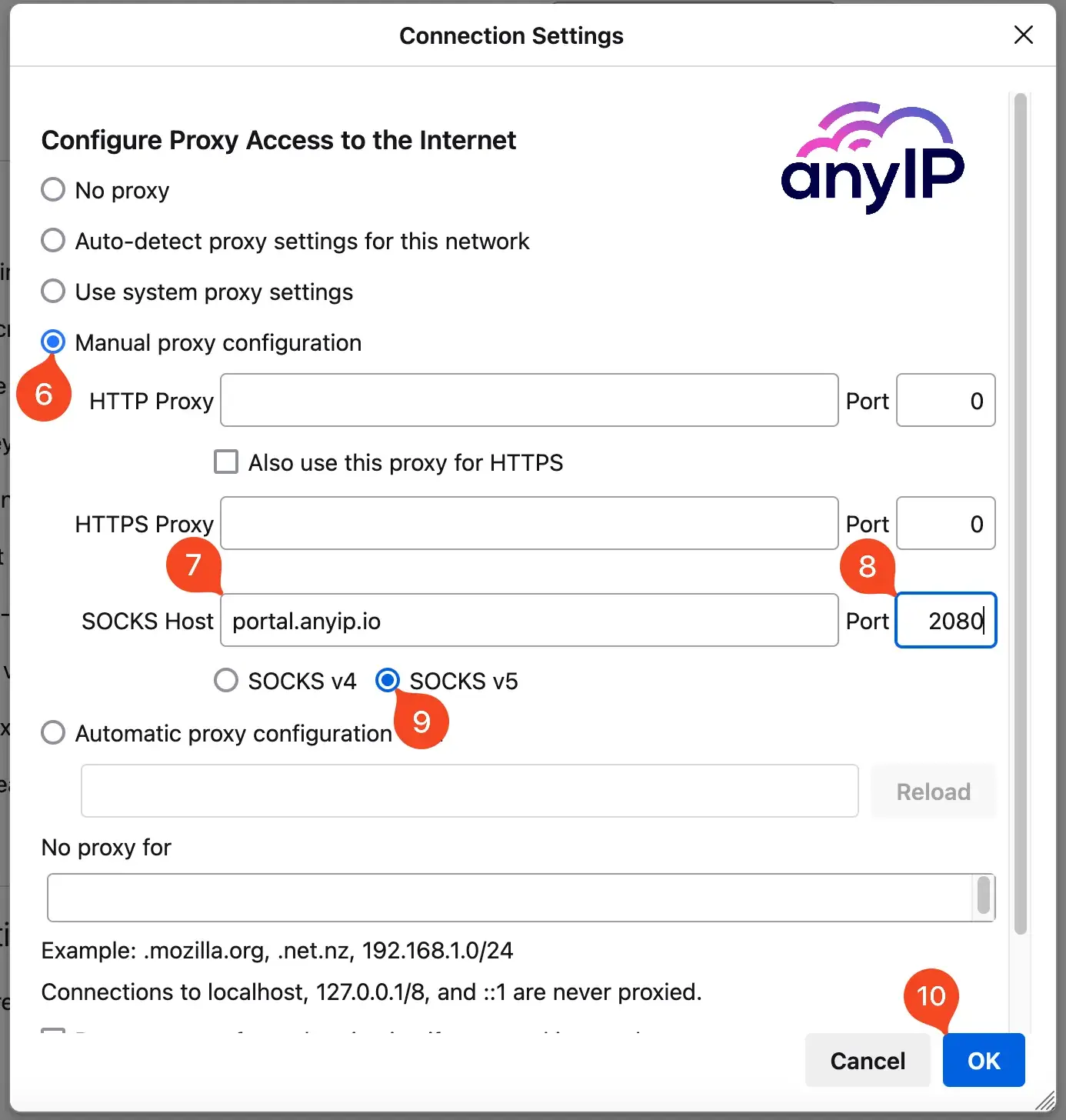
Select “Manual proxy configuration.”
Enter your hostname in the SOCKS Host field. In our example, we use anyIP.io as a provider: portal.anyip.io
Enter here your proxy port for anyIP.io we use: 2080
Select “SOCKS v5” to use this protocol
Confirm your configuration by clicking
If your proxy provider has an IP Whitelisting feature, you are now connected to your proxy.
You can test the proxy with https://browserleaks.com/dns.
As you can see, your IP address is hidden. But, when using a native proxy connection with Firefox, you have a DNS leak
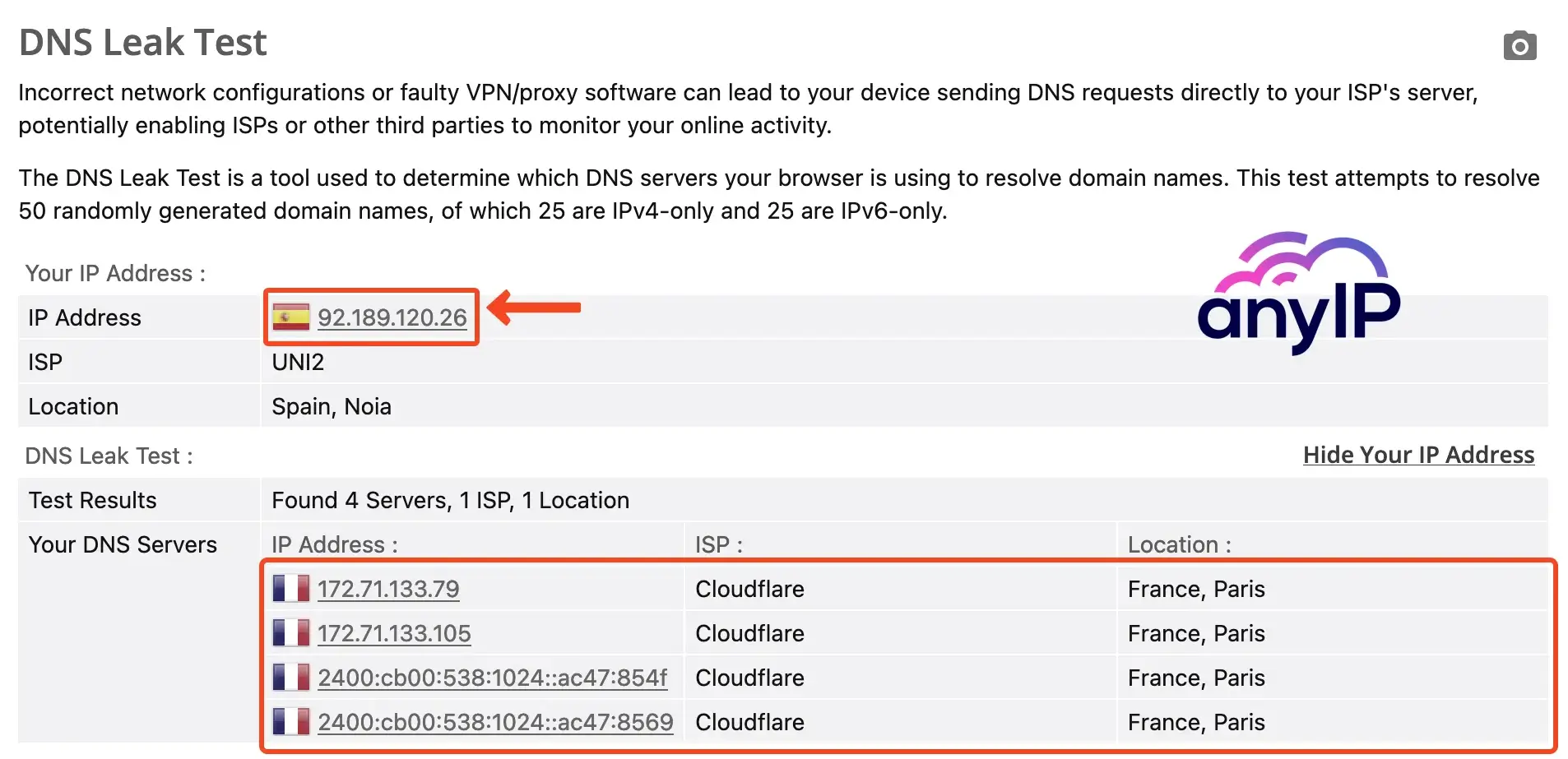
To prevent this issue, we recommend using the extension, “FoxyProxy.”
How to test your proxy connection
We cover two methods to use a SOCKS5 proxy in Firefox. How can we ensure that your proxy is enabled?
Luckily, It’s a simple verification. Head up to https://browserleaks.com/ip with and without the proxy activated. You will see that your IP is getting updated.
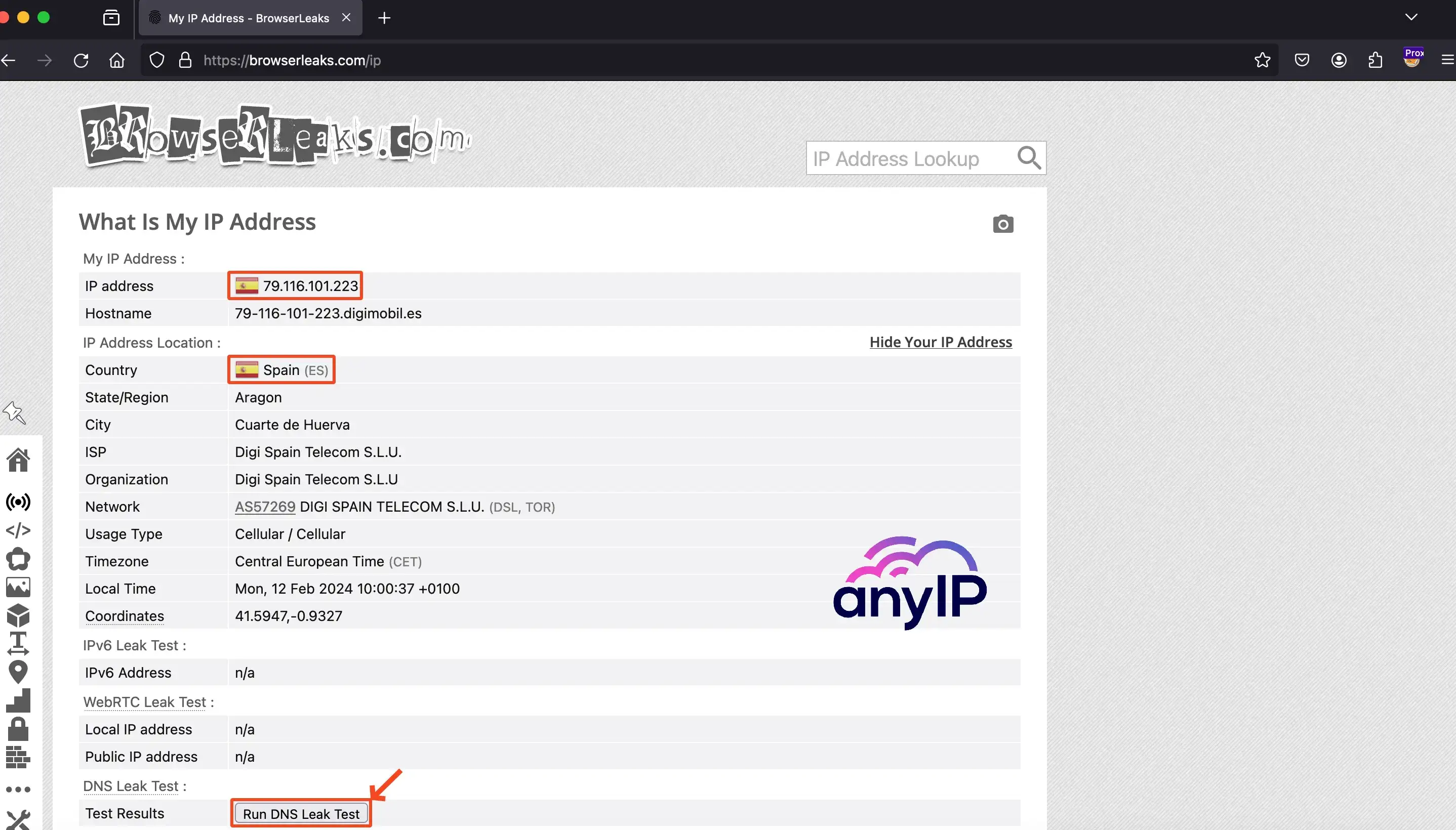
I can see that my new residential IP is different with the proxy enabled and that I’m well located in Spain as configured in my proxy.
You can also run a DNS Leak test to check if your DNS servers are safe:
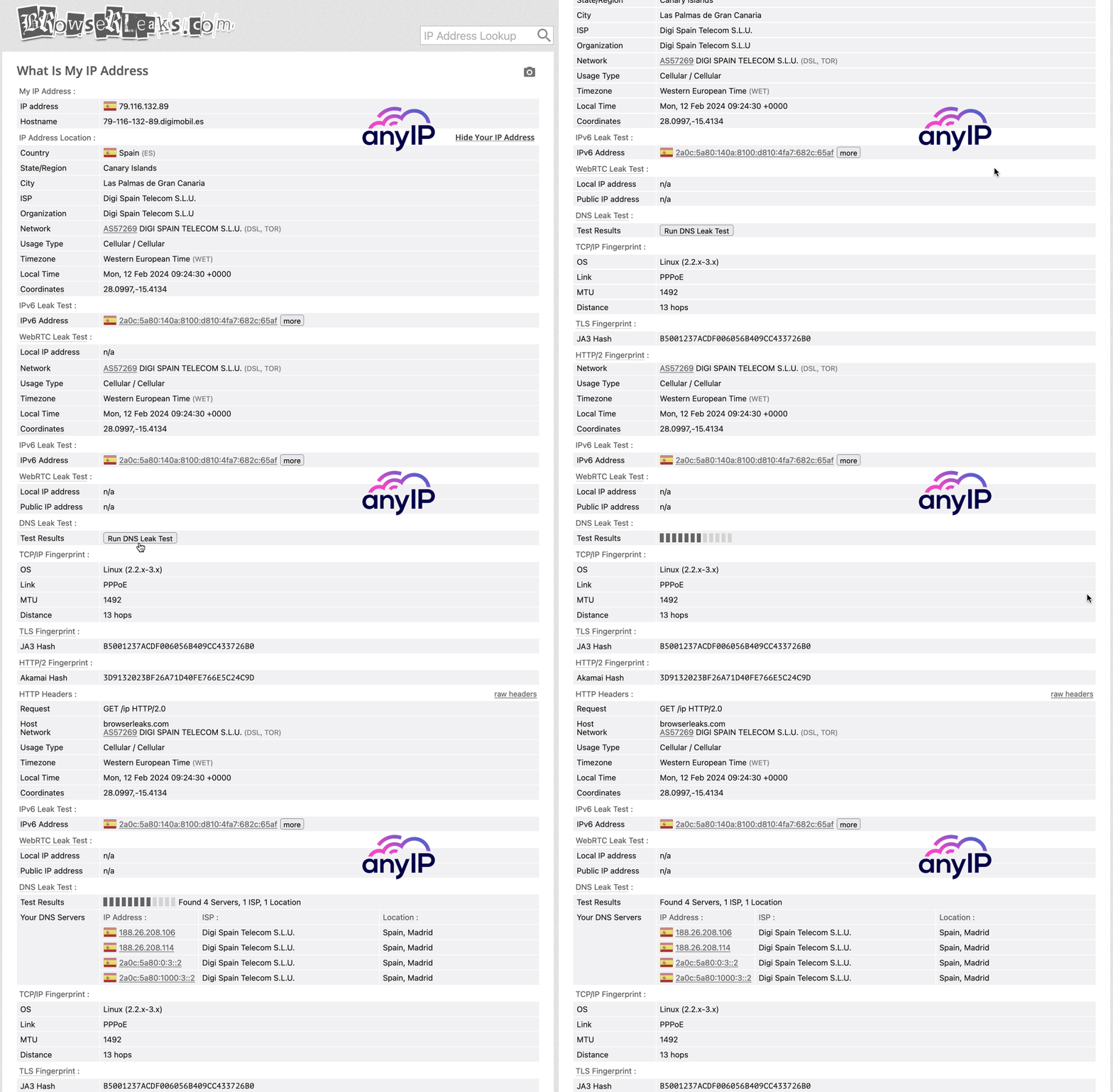
Thanks to anyIP.io, I can see that both my IP and my DNS are located in Spain. Hence, my session is entirely located in Spain.
💡 You can also use the tool available directly in the extension: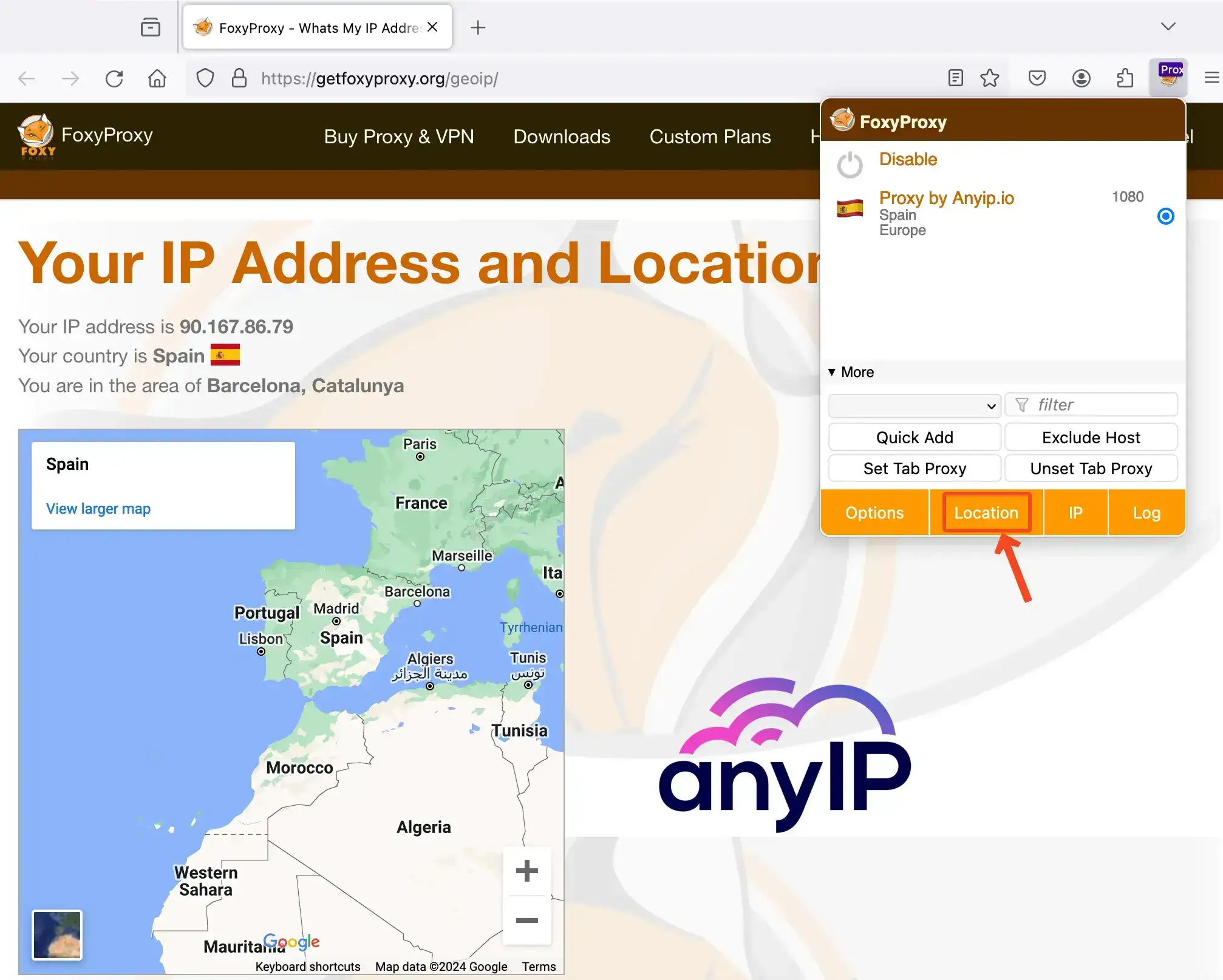
Troubleshooting Common Issues
You may encounter a few common issues, such as :
My proxy is not connecting?
If you’re having trouble connecting to your proxy, check if you have the correct hostname/IP port.
Take the time to double-check your credentials (username/password).
Firefox keeps asking for a username and password
As mentioned, Mozilla Firefox is incompatible with SOCKS5 Proxy. SOCKS5 Proxy requires username and password authentication. Before using a proxy provider, ensure it can handle the IP Whitelisting authentication method.
Connection refused or server not responding
Suppose your credentials and proxy information are correct. In that case, I suggest contacting your proxy provider to check if their services are still working correctly.
How to quickly get SOCKS5 proxy using anyIP.io
You can access SOCKS5 proxies with ease through anyIP.io expanding network. Plus, the 24/7 support is here to assist you anytime, ensuring seamless service round the clock.
What is a SOCKS5 proxy, and how are they working with Firefox?
A SOCKS5 proxy is a type of proxy. It enables users to bypass network restrictions. They can also maintain their anonymity while browsing the internet.
SOCKS stands for Socket Secure. An internet protocol routes network packets between a client and a server through a proxy server. A SOCKS5 proxy will allow you to access geo-restricted content. It can also improve internet security and hide your IP address.
Does this work on Google Chrome?
If you are more confortable with Google Chrome, we got your back! You can follow our guide to help you easily configure the proxy on Chrome.
Article by
Khaled Bentoumi
Khaled is a software engineer. He's been involved in many startups of different sizes. Previously, he founded Data to Page, an AI Programmatic SEO startup. He now handles all the marketing at anyIP.


:format(webp))
:format(webp))
Article by
Khaled Bentoumi
Khaled is a software engineer. He's been involved in many startups of different sizes. Previously, he founded Data to Page, an AI Programmatic SEO startup. He now handles all the marketing at anyIP.
Read more
:format(webp))
How to customize Your User-Agent with Python Requests
Learn how to update and rotate user-agents in Python Requests to avoid detection and improve scraping efficiency.
How to Set Up SOCKS5 Proxy in Chrome: Ultimate Guide
In this tutorial, we’ll show you how to quickly set up a SOCKS5 proxy in the popular web browser Google Chrome
How to Set Up Proxies with Potatso in iOS: Guide
Discover the ultimate Potatso proxy guide! Learn how to set up and configure proxies on your iOS device effortlessly.